Machine feels slow or cannot run current software

Before spending on a new ThinkPad, work out whether the machine you already have is actually the problem or whether it's just underprovisioned in one specific way. A five-year-old ThinkPad T-series with 8GB of RAM and a mechanical hard drive can feel identical to a dead machine when opening a browser with a dozen tabs, while the same machine with an SSD and 16GB installed handles the same task without hesitation.
Start by isolating the bottleneck rather than assuming the processor is worn out:
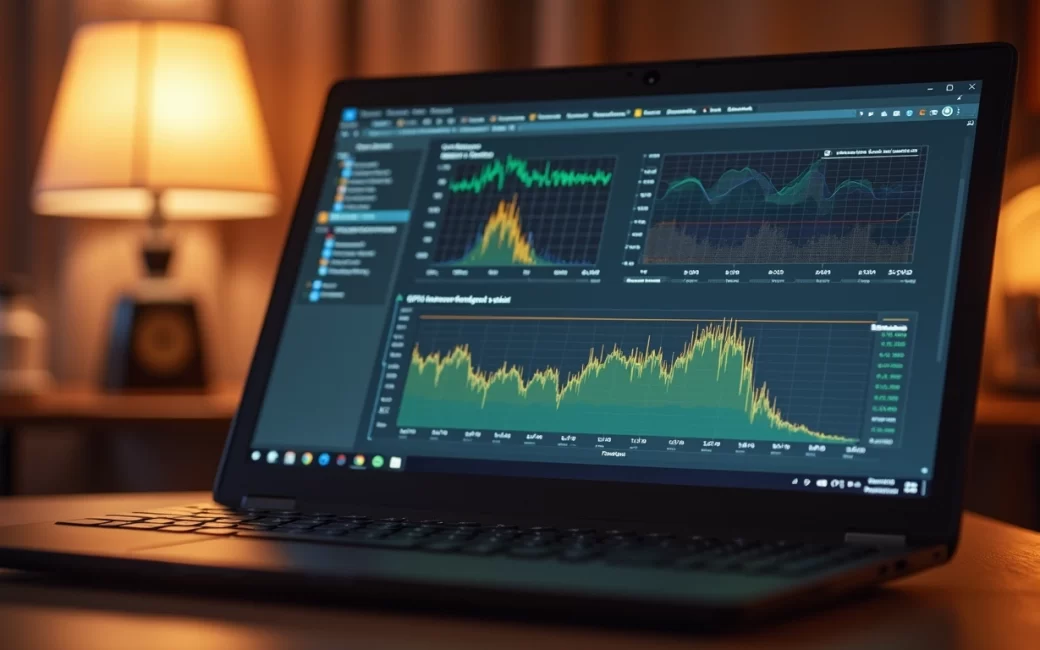
- Open Task Manager (Windows) during the slow task and watch which resource sits near 100% — memory, disk, or CPU.
- If disk usage spikes and stays high while CPU sits low, the drive is likely the limit, not the chip.
- If memory usage sits near its ceiling with many tabs or apps open, adding RAM is the cheaper fix.
- If the CPU itself pegs at 100% on ordinary tasks, no component swap will fix that — the processor generation is the ceiling.
Many ThinkPad T, L, and P models — the traditional business and workstation lines — use socketed memory and a standard M.2 slot, which means a $60–100 SSD or a memory upgrade is realistic if you're comfortable removing the bottom panel, in keeping with how the ThinkPad lineup's business-focused chassis have historically been built. Thinner X1-series machines increasingly solder memory to the board, which removes that option entirely. If the parts are sealed in, or if the processor generation itself is what's throttling you, replacing the whole machine is the better use of money than chasing a partial fix.
Define the workload first: browsing and office work, gaming, or professional compute
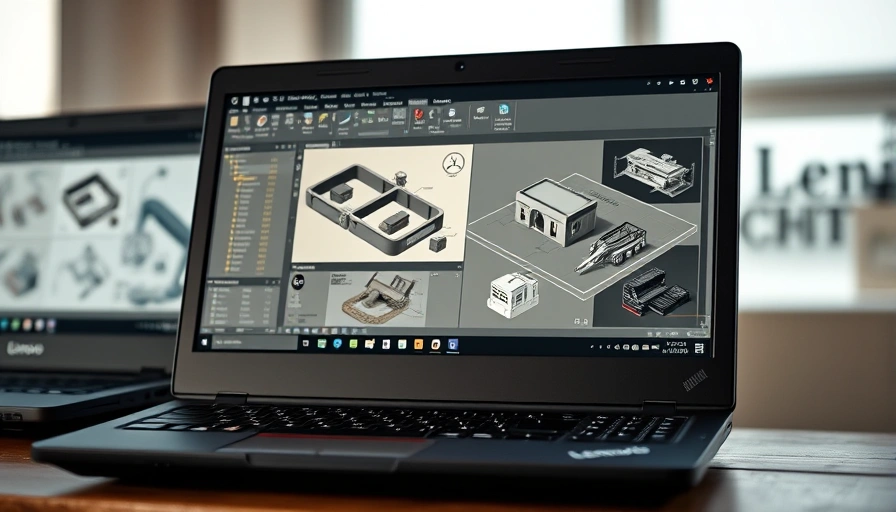
Decide what the machine needs to do before comparing any spec sheet. The workload sets a floor for processor tier, memory, and graphics — everything else, including which ThinkPad series you should even be looking at, follows from that floor rather than the other way around.
For a reader who mostly browses, emails, and works in office documents, a mid-tier processor with 16GB of memory and an SSD is enough headroom for years of use — that's the territory of the T-series and lower L-series ThinkPads. A reader who does CAD, video editing, or data science work needs a dedicated graphics option and more memory, which points toward the ThinkPad P-series workstation-class laptops. Gaming isn't really a ThinkPad strength at all: the line has never been built around discrete gaming GPUs the way consumer gaming laptops are, so a reader whose primary use is gaming is better served looking outside the ThinkPad family entirely.
Once the workload sets the spec floor and the budget sets a ceiling, the two together narrow the choice to one or two ThinkPad series. From there, compare specific configurations against reviews that have actually run benchmarks on them — outlets like Laptop Mag, TechRadar, and PCMag periodically test current ThinkPad models and publish which configurations hold up under sustained load rather than just on a spec sheet.
Pick the operating system the reader's required software and existing devices depend on
Decide the operating system before comparing prices, because it's the constraint that actually determines which machines are on the table. ThinkPads ship with Windows as the default, though several models carry Linux certification for specific distributions, which matters if the reader's required software — CAD suites, certain accounting packages, enterprise VPN clients — is Windows-only or Linux-only.
That decision restricts you to Lenovo's ThinkPad lineup (if Windows or certified Linux is required) rather than opening the field to macOS or ChromeOS machines, which run different software ecosystems entirely. Once the platform is fixed, compare specific ThinkPad configurations against each other on price and feature set — screen resolution, port selection, battery capacity — using current listings and comparative reviews rather than the spec sheet alone.
Where you buy matters once the model is chosen. Lenovo runs its own ThinkPad deals page with periodic markdowns and configure-to-order options not available through third-party retailers, while big-box retailers such as Best Buy carry fixed configurations with in-store return handling and no wait for custom builds. If the budget is tight, timing a purchase against a sale cycle on either channel typically saves more than switching between two similarly-priced configurations.
Laptop
A laptop is a portable, battery-powered computer with the display, keyboard, and all core components built into one hinged case. The ThinkPad line is Lenovo's laptop family, and it's the form factor the vast majority of buyers researching "ThinkPad" actually mean — the ThinkPad name originated at IBM before the business was sold to Lenovo, and the line has kept its recognizable black chassis and pointing-stick keyboard design across that transition, as documented in the ThinkPad's history.
Within the ThinkPad laptop family, the series designation is the fastest way to orient yourself:
| Series | Positioning | Typical buyer |
|---|---|---|
| T-series | Mainstream business laptop, durable chassis, socketed upgrade options on many models | Office work, general business use |
| X-series (including X1 Carbon) | Thin and light, premium build, often soldered memory | Frequent travelers prioritizing weight over repairability |
| L-series | Budget-oriented business laptop, similar body language to T-series at a lower price | Cost-conscious buyers who still want business build quality |
| P-series | Workstation-class laptop with discrete graphics options | CAD, video, and other GPU-dependent professional work |
| Yoga / X1 Fold | Convertible or foldable 2-in-1 designs | Buyers who want touch and tablet modes in a ThinkPad body |
Lenovo groups the whole family, alongside its desktop and workstation lines, under the Think brand page, which is the fastest place to see which series are currently in active production before you start comparing individual configurations.
Workstation
A workstation is a high-specification computer built for sustained professional or compute-heavy work rather than general use — CAD rendering, large dataset processing, video encoding, or engineering simulation. In the ThinkPad range, this is the P-series: laptops that pair a workstation-tier processor with a discrete professional or high-end consumer GPU and typically more memory headroom than the T or X lines.
The distinction that matters for a buyer is certification, not just raw specs. Workstation-class machines are often validated by their software vendors — Autodesk, Adobe, and similar professional tool makers — for stability under sustained load, which is a different bar than a laptop simply having strong benchmark numbers. If your workload is professional 3D, simulation, or heavy video work, a P-series ThinkPad or Lenovo's separate ThinkStation desktop line is the appropriate comparison point rather than a higher-spec T-series laptop, because the graphics and driver validation, not just the CPU tier, is what workstation software actually depends on.
Computer
A computer, in the general sense, is any device that takes input, processes it by following a stored set of instructions, and produces output — that definition applies equally to a phone, a laptop, a desktop tower, and a workstation. What separates the categories buyers actually shop for is form factor and the balance struck between portability, upgradeability, and raw processing capacity, not any difference in that underlying definition.
This is worth stating plainly because "computer" gets used loosely as a stand-in for whichever form factor is top of mind, and that loose usage is exactly what makes spec comparisons confusing. A ThinkPad, a Lenovo ThinkCentre desktop, and a ThinkStation workstation are all computers in the technical sense; the decision a buyer actually faces is which of those forms fits the workload and the budget, which is the question the rest of this article answers section by section.
Desktop computer
A desktop computer is a stationary machine, sold either as a tower with separate components or as an all-in-one with the components built into the display housing. Lenovo's desktop line sits under the ThinkCentre name, distinct from the ThinkPad laptops, and towers within that line generally offer far more internal expansion room — additional drive bays, replaceable graphics cards, more memory slots — than any laptop can accommodate.
For a buyer choosing between a ThinkPad laptop and a ThinkCentre desktop, the tradeoff is straightforward: a desktop tower gives up portability entirely in exchange for more raw performance per dollar and a machine that can be upgraded piece by piece over several years, while a ThinkPad trades some of that expansion room for the ability to work anywhere. If the machine will sit on one desk for its whole life and the budget is fixed, a tower typically buys more sustained performance than a laptop at the same price point, because a laptop's cooling and battery constraints cap how much processing power the chassis can sustain.
All-in-one desktop
An all-in-one desktop bundles the tower's components into the same housing as the display, trading the tower's expansion room for a smaller footprint and a single cable to the wall. Lenovo sells all-in-one ThinkCentre models alongside its tower desktops, aimed at buyers who want desktop-class performance without a separate tower box taking up desk space.
The tradeoff to weigh against a tower is repairability rather than raw performance: because the display and internals share one enclosure, most all-in-ones are far more difficult to open and upgrade than a tower, and a failed panel or a full-size graphics upgrade often isn't practical at all. A buyer choosing an all-in-one is generally choosing it for the desk-footprint savings, not because they expect to upgrade internal parts later — if future upgrades matter to you, a tower is the more forgiving choice even at a similar price.
Tablet and 2-in-1
A tablet or 2-in-1 is a touch-first device positioned between a laptop and a phone, and in the ThinkPad range it shows up as the convertible Yoga models and the foldable X1 Fold, both of which add a touchscreen and tablet or fold-flat mode on top of the standard ThinkPad keyboard experience. These trade some of the ruggedness and port selection of a standard T or X-series ThinkPad for a hinge or fold mechanism that lets the same device work as a flat tablet.
The reasonable use case is a buyer who genuinely uses touch input regularly — note-taking with a pen, presenting a screen to someone across a table, or reading documents in tablet mode — rather than a buyer who simply wants "the newest ThinkPad," since the hinge and touch hardware add cost and, on foldables in particular, add another moving part that can be a repair point later. If touch and fold-flat use aren't part of your actual daily habit, a standard clamshell ThinkPad in the T or X-series gets you more durability per dollar spent.
Operating system (Windows, macOS, ChromeOS)
The operating system is the software platform that decides which applications a machine can run and which peripherals it can use, and it should be settled before comparing specific models. ThinkPads run Windows by default, with several models also carrying vendor certification for specific Linux distributions — a detail worth checking directly against the model's spec sheet if Linux is a requirement rather than a preference.
Windows-based ThinkPads are not interchangeable with macOS or ChromeOS machines for software purposes: an application built for macOS won't run on a ThinkPad, and vice versa, regardless of how similar the hardware specs look on paper. This is why the operating system decision has to come before the model comparison rather than after it — deciding "I need Windows because my required software is Windows-only" (or the reverse) immediately removes an entire category of otherwise-attractive machines from consideration, saving time that would otherwise go into comparing devices that were never actually viable options.
Internal components (processor, memory, storage)
The processor, memory, and storage are the three specs that actually determine how a ThinkPad performs, and each changes something distinct rather than contributing to one generic "speed" number.
- Processor (CPU): sets the ceiling for how much work the machine can do at once and how fast a single task — compiling code, exporting video, running a spreadsheet macro — completes. A higher-tier chip matters most for CPU-bound work like video encoding or heavy multitasking; it does almost nothing for tasks that are limited by disk speed or network latency instead.
- Memory (RAM): determines how many applications and browser tabs can stay open and responsive at once without the system swapping data to the (much slower) drive. 8GB is tight for modern browsing with many tabs plus office apps open simultaneously; 16GB is a comfortable working minimum for that same load, and 32GB or more matters mainly for video editing, virtual machines, or large datasets.
- Storage (SSD vs. HDD, and capacity): an SSD changes how fast the whole system feels day to day — boot time, app launches, file transfers — far more than a faster processor would, because a mechanical hard drive is the slower link in almost every everyday task. Capacity is a separate decision from speed: buy more storage headroom if you keep large media files locally, and less if most of your work lives in cloud storage.
Whether these parts are socketed (replaceable later) or soldered to the board (fixed at purchase) also varies by ThinkPad series, which is exactly the detail worth checking on the spec sheet of any specific model before assuming an upgrade path will exist down the road — the T and L-series have historically offered more of that flexibility than the thinnest X1 machines.
Once you know which series matches your workload and which operating system your software requires, the next step is checking a current spec sheet against these numbers directly — Lenovo's own ThinkPad deals listings and a retailer like Best Buy both show live configurations you can compare line by line before deciding.