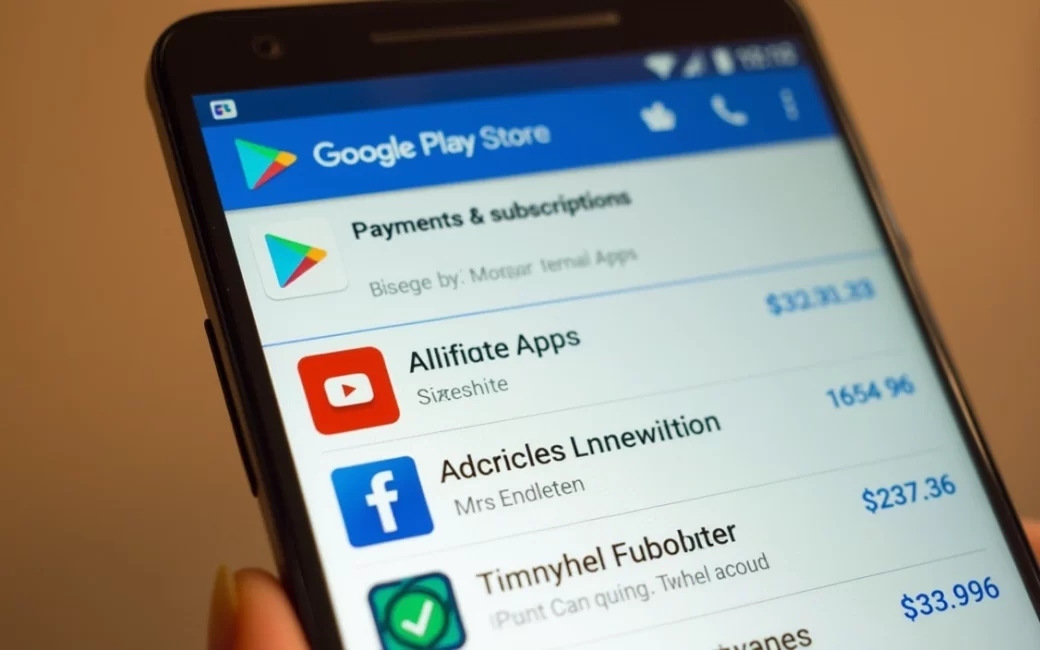
Most "mystery" charges from Google Play aren't billing errors — they're real purchases made under a Google Account that the person checking their statement didn't immediately recognize. Five patterns account for almost all of them:
- Auto-renewing subscriptions that continue billing after a free trial or a first paid period, often for an app the user forgot they subscribed to.
- In-app purchases inside games, especially ones bought by a child or family member using a shared device with a saved payment method.
- Pre-authorized trial charges that convert automatically to a full price once the trial period ends.
- Price increases on renewal — a subscription's cost can change between billing cycles even if the plan itself didn't change.
- Duplicate devices signed into the same account, where a purchase made on a tablet or second phone shows up on the primary card without the person realizing a second device was involved.
None of these are hidden fees charged by Google Play itself — the store doesn't add its own surcharge on top of a listed price. They're purchases the account already authorized, just easy to lose track of. Tracing the charge back to its source is the same process regardless of which of the five it turns out to be:
- Open the Play Store app and tap the account icon.
- Go to Payments & subscriptions, then Budget and order history (or the subscriptions list).
- Match the charge date and amount to a listed app, in-app purchase, or subscription renewal.
Once the source purchase is identified, the fix depends on what it was. A subscription can be cancelled from the same subscriptions screen, which stops future renewals but doesn't refund what's already been charged. A one-off app or in-app purchase can sometimes be refunded by requesting it through the process described on Google's support page for getting apps and content from Google Play; eligibility depends on how the purchase was made and how much time has passed, so it's worth submitting the request as soon as a charge looks wrong rather than waiting.
Play Store icon is not visible on the device
If the Play Store icon is missing, the most likely causes are that the app has been disabled in system settings, it's buried outside the visible home screens, or it was never installed on that particular piece of hardware to begin with. Some tablets, e-readers, and budget devices sold in certain markets ship without Google's app suite at all, which is why the icon simply isn't there to find no matter how thoroughly the home screens are searched.
Work through these checks in order, cheapest and least invasive first:
- Search the full app drawer, not just the home screen — the icon may exist but not be pinned.
- Check Settings > Apps > Google Play Store to confirm it isn't disabled or force-stopped.
- Look for a "restore" or "reinstall" option if the app was previously removed rather than just hidden.
- If none of the above turns it up, treat the device as one that may not ship with Google's apps rather than assuming a setting is broken.
Google's own instructions for locating the app cover the standard settings path, detailed on Google's Find the Google Play Store app page. Once the app is confirmed present, opening it prompts a Google Account sign-in, after which apps, games, and other content become available to browse and install.
User searches for 'app market' expecting a separate store
Anyone searching for a Google "app market" separate from the Play Store is running into old terminology, not a missing product. Google's storefront originally launched as Android Market and was renamed Google Play in 2012, folding apps, music, movies, and books into a single branded service, as documented on the Google Play Wikipedia entry. There is no separate "Android Market" to go find — it's the same store under its current name.
Confusion resurfaces because some third-party listings use "Market" in their own app name while having nothing to do with Google's storefront. For example, listings like AppsMarket are independently published apps distributed through Google Play, not alternative Google-run stores. The official storefront itself is reachable directly at Android Apps on Google Play, and its own listing page still carries the internal package name com.google.android.finsky, a holdover from the Android Market era visible on the Android Market app listing. Anything claiming to be a separate "market" outside this ecosystem is a third-party app store and should be treated with the same caution as any unfamiliar installer — it isn't reviewed under Google's own listing process.
Developer publishes an app with a store listing
Publishing to Google Play starts with a developer creating a store listing — a title, description, screenshots, and pricing — that becomes the page users see before installing. Once live, users install the app, and their ratings and written reviews attach to that same listing, becoming the signal other users see before downloading it themselves.
After launch, the relationship between developer and installed base continues through updates. Developers push new versions to the same listing, and Play Store's default settings apply those updates automatically on each user's device without requiring a manual reinstall. This is what keeps a phone or tablet's installed apps current: the update mechanism runs in the background, checking listings for new versions and applying them on whatever schedule the device's auto-update setting allows. A general description of how listings, installs, and updates connect is laid out in Google's own overview, How Google Play Works, and a plain-language summary of the storefront's role is also covered in Mobile Action's Google Play Store glossary entry.
Checking the account behind the device
Every charge, install, and review traced above sits on top of one thing: the Google Account signed into the Android device. Before making a first purchase, it's worth confirming the account has a payment method attached under Payments & subscriptions, since that's the setting that determines whether a tap on "Buy" completes instantly or prompts for card details. Checking that setting now, rather than after a surprise charge, is the simplest way to keep the next unrecognized line on a statement from happening at all.