What burn-in actually is, and why LCD and OLED don't share it
Burn-in is a permanent change to a display's ability to render color evenly, and it only affects one of the two panel types used in laptops. On an OLED panel, each pixel produces its own light using an organic compound that degrades with use — a pixel that has spent thousands of hours showing a bright white taskbar ages faster than the pixels around it that were mostly black, and the difference becomes a visible ghost of the old image. An LCD works differently: pixels don't emit light, they act as shutters in front of a separate backlight, so there's no organic material degrading pixel-by-pixel in the same way.
That structural difference is also why a screen that looks black or shows nothing at all is almost never the same problem as burn-in, even though both get described by frustrated owners as "my screen is broken." Burn-in leaves a faint but persistent image. A dead or dark screen is a different failure entirely, and it needs a different diagnosis.
Can an LCD laptop screen actually burn in?
Not in the OLED sense, but it can develop a related fault called image persistence, and conflating the two leads to the wrong fix. What people call "LCD burn-in" is usually the liquid crystal layer failing to fully reset after displaying a static image for a long stretch, which leaves a faint ghost of that image visible against other content — a fault Riverdi's explainer on LCD burn attributes mainly to a fixed DC bias voltage being applied to the same pixels for too long, rather than to the pixel material physically wearing out. Because nothing has actually degraded, this kind of ghosting is frequently temporary and clears once the panel is rested or refreshed with varied content.
True permanent burn-in on the OLED model — organic material aging unevenly until the difference in luminance and color can't be un-driven back to even — is a different failure mode, and it's the one manufacturers design mitigation features around.
Does LCD burn-in go away, and is OLED burn-in reversible?
The honest answer depends on which fault is actually present, so it's worth separating three outcomes instead of treating "burn-in" as one yes/no question.
| Fault | What's happening | Reversible? |
|---|---|---|
| LCD image persistence | Liquid crystal layer slow to reset after a static image | Usually, once the panel rests or the static image changes (Riverdi) |
| Early-stage OLED burn-in | Slight, uneven aging visible only on plain backgrounds | Sometimes reduced with pixel-refresh or compensation cycles built into the display |
| Established OLED burn-in | Organic material has aged unevenly enough to leave a permanent ghost image | No — the Wikipedia entry on screen burn-in describes this as a permanent discoloration once it sets in |
So "is screen burn permanent" and "can you reverse it" have different answers depending on the panel and how far the fault has progressed. A faint LCD ghost from a paused video left onscreen overnight is not the same event as a taskbar outline permanently etched into an OLED panel after months of static use.
Screen shows a ghost image vs. screen shows nothing at all
These are two different tickets, and mixing them up wastes time and money. A burn-in ghost coexists with a normal, working display — the rest of the screen updates fine, and the mark is just an overlay. A black screen of death is different: the laptop powers on, fans spin, and sometimes drive lights blink, but the display itself stays black regardless of what's on it. No display / screen not working describes the same symptom from the outside — the panel shows nothing while the system underneath appears to run normally.
If the fault is a persistent partial image, the burn-in and image-persistence checks above apply. If the fault is a screen with nothing on it at all — no ghost, no image, no backlight — that's a hardware or driver problem unrelated to burn-in, and it needs its own troubleshooting path.
Laptop powers on but shows nothing
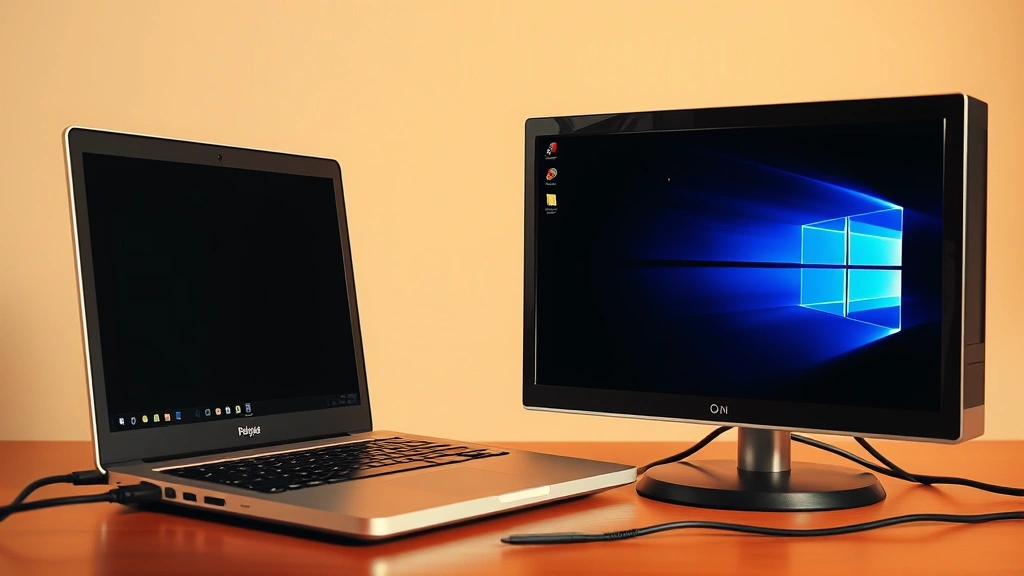
Start by finding out whether the problem is the panel or something further upstream. Connect the laptop to an external monitor or TV using its video output:
- If an image appears on the external display, the internal panel or the cable feeding it is at fault, not the graphics system.
- Check the internal display cable connection if the laptop can be safely opened — a loose or damaged display cable (the ribbon or LVDS/eDP link between the mainboard and the panel) is a common cause of a panel that shows nothing despite the system running.
- Reseat that cable first, since a connector that's simply worked loose is the cheapest possible fix.
- If reseating doesn't help and the cable shows visible fraying or damage, replacing just the cable is worth trying before condemning the panel.
- If the external monitor also shows nothing, or the panel is still blank after a known-good cable, the panel itself — or a failed backlight driving an image with no light behind it — is the more likely cause.
This sequence matters because it stops a reader from paying for a full panel replacement when the actual fault is a cable or connector.
Screen black or blank after a Windows or driver change
If the black screen started right after an update, a driver is the most likely cause and the cheapest to test. An outdated or corrupted graphics driver is a software fault commonly behind a laptop that boots normally but shows a black or glitching display after a system or driver update — the fix costs nothing but time:
- Boot into safe mode or use the external-monitor trick above to get a usable display.
- Roll back the graphics driver to the version installed before the update, or update it to the latest version if the current one is known to be broken.
- If neither resolves it, uninstall the driver completely and let Windows reinstall a generic version, then update from there.
- Confirm the fix by rebooting normally and checking the display comes up without intervention.
Display output returning after any of these steps confirms the driver, not the panel or cable, was the cause — a distinction worth making before spending money on hardware.
Screen stays black and the laptop seems unresponsive
Before assuming a hardware failure, rule out a stuck power state. A power supply or battery fault — insufficient or interrupted power reaching the panel or backlight — can leave a laptop looking dead even though internal components are fine:
- Disconnect the charger and, if the battery is removable, take it out; if it isn't, hold the power button down briefly to drain residual charge from the board.
- Reconnect the charger only (leave the battery disconnected if possible) and try powering on.
- If the display initializes normally on charger power alone, the battery itself is the likely fault.
- If nothing changes, the charger, DC jack, or internal power delivery is more likely at fault than the screen.
This reset is worth trying before opening the laptop or buying any parts, since a stuck power state can look identical to a dead screen from the outside.
Panel is visibly cracked or backlight has failed — and when it's a Lenovo issue specifically
A cracked LCD panel and a failed backlight look similar from a distance but are diagnosed differently. A cracked panel shows visible physical damage — spidering, discoloration, or dead zones tied to an impact. A failed backlight is subtler: the system boots, and if the reader shines a bright flashlight at an angle across the screen in a dark room, a very faint image is often still visible, which points to the backlight rather than the panel electronics as the fault. That distinction matters because a backlight repair is usually cheaper than a full panel swap.
On Lenovo machines specifically, "screen problem" reports commonly bundle several distinct faults together — no display at all, a black screen, flicker, and physical panel damage — rather than one consistent cause, so the diagnostic order above (external monitor, then cable, then driver, then power, then panel) applies whether the laptop is a ThinkPad, IdeaPad, or Yoga, though hinge-mounted cables and touchscreen assemblies on 2-in-1 designs add extra points where a cable can work loose.
Once the cause is confirmed as physical — a cracked panel or a dead backlight — get a repair quote covering parts and labor, then weigh it against the laptop's remaining value and how much life is left in its OS update support before deciding whether to repair or replace.
Fixes worth trying before writing off an OLED panel to burn-in
If the diagnosis really is burn-in rather than a black screen, cable, driver, or power fault, a handful of low-cost steps address the temporary cases and are worth trying before assuming the panel is done:
- Run inverted or complementary-color content for extended periods; some guides on fixing screen burn recommend this to encourage more even pixel wear going forward, though it will not undo material that has already degraded unevenly.
- Use a manufacturer or third-party pixel-refresh utility if the laptop's OLED panel includes one — AG Neovo's overview of anti-burn-in technology describes periodic compensation cycles built into OLED and similar displays specifically to even out luminance, and forcing an extra cycle can help mild cases.
- Lower static-element brightness — taskbar, dock, and browser toolbars are the most common sources of a fixed high-brightness region, so dimming or auto-hiding them reduces the uneven wear that produces the ghost in the first place.
- Vary wallpaper and enable screen-saver or sleep timers so no single bright shape sits in the same pixels for hours at a stretch.
None of these repair pixels that have already aged unevenly; they either resolve a temporary LCD fault or slow further progression on an OLED panel that's just starting to show it. A dedicated burn-in test pattern tool is a reliable way to check whether a mark is present at all before deciding which of these steps applies.
Run the external-monitor check first if the complaint is a screen that shows nothing, and only move on to the burn-in-specific fixes once a partial, persistent ghost image — not a fully black or dead display — is confirmed as the actual fault in front of you.