
Unfreeze a laptop in 60 seconds
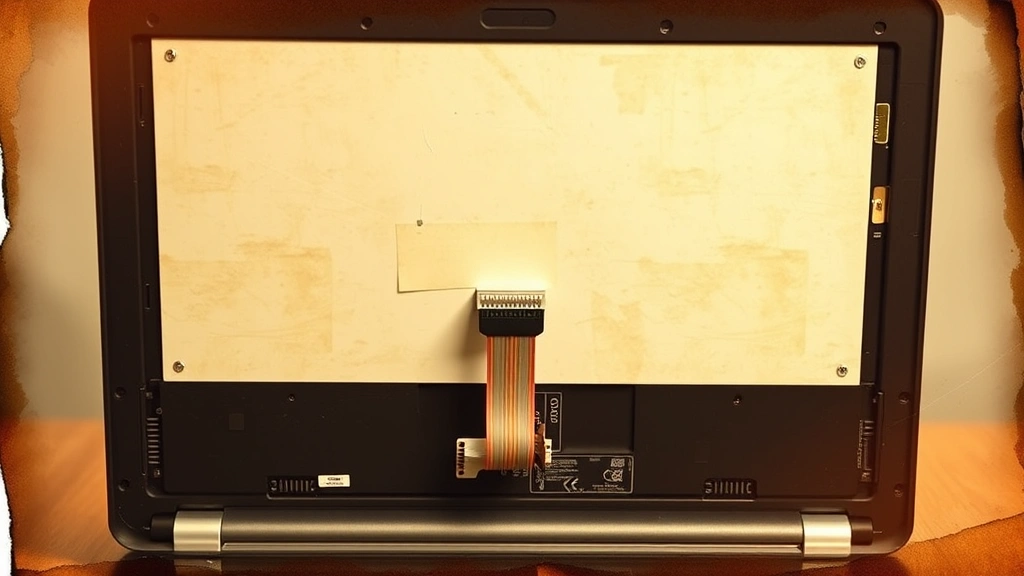
Start with the cheapest fix and work up only if it fails. Press Ctrl+Alt+Delete first — if the lock screen or task-manager menu appears, the keyboard and operating system are still alive, and only the foreground app has hung. From there:
- Open Task Manager from that menu and end the unresponsive application — this clears the vast majority of ordinary freezes without a restart, according to Microsoft's troubleshooting guide for Windows-based computer freezes.
- If nothing appears after Ctrl+Alt+Delete, wait 15–30 seconds — a spinning disk, a Windows Update install, or a resuming app can look identical to a true freeze before it clears itself.
- If the screen still doesn't respond, hold the power button for about 10 seconds to force a shutdown, then power back on — both HP and PCMag list this hard reset as the standard next step when the keyboard gives no response at all.
- If the laptop won't even power back on cleanly, disconnect the charger, remove or isolate the battery if it's removable, and hold the power button again for 10–15 seconds to drain any residual charge before retrying.
That sequence resolves a soft hang. What follows is for when the screen itself — not just the software — is the problem: black, blank, cracked, or dim regardless of what you press.
Laptop powers on but shows nothing
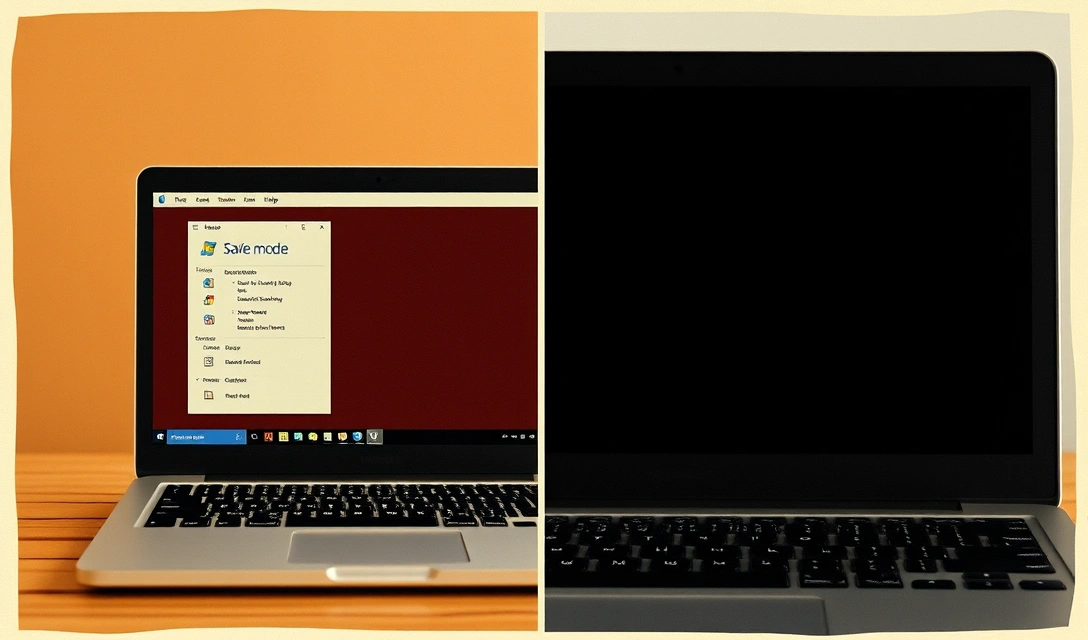
This is a different fault from a frozen app: fans spin, the power light is on, but the panel never displays an image at any point, including the manufacturer logo. When this happens with no backlight and no response to any key or reset combination, it's commonly described as a black screen of death — distinct from a crashed app in that the operating system may be running normally with the display path itself cut off. The first useful test is to connect an external monitor or TV over HDMI or USB-C and see whether an image appears there.
If the external display shows a desktop, the system itself booted fine and the problem sits in the internal panel or the cable feeding it, not in Windows or the graphics card. If the external display also stays blank, the fault is upstream — graphics hardware, RAM, or power — and belongs in general freeze/boot troubleshooting rather than screen repair.
When the external monitor works and the internal panel doesn't:
- Reseat the internal display cable if you're comfortable opening the base panel — a ribbon or LVDS/eDP cable that has worked loose from vibration or a drop is a common, low-cost cause.
- If reseating doesn't help, the cable itself may be frayed and need replacing — inexpensive, but it does require disassembly.
- If a known-good cable is already in use and the panel is still blank, the panel itself has failed and needs replacement.
This test matters because it tells you, before you spend anything, whether you're looking at a $20 cable or a panel that costs considerably more — rather than guessing and replacing the expensive part first.
Screen black or blank after a Windows or driver change
If the blank screen started right after a Windows update, a driver update, or installing new graphics software, treat the driver as the first suspect. This is the most frequently cited software cause of display faults, and it's also the cheapest to rule out, since it costs nothing and needs no disassembly.
Boot into Safe Mode (hold Shift while restarting from the login screen, or interrupt the boot sequence three times to trigger Automatic Repair) and check whether the display works normally there. Safe Mode loads a minimal, generic driver, so if the image returns, the full graphics driver is the problem.
From there:
- Roll back the driver through Device Manager if it worked before a recent update and failed after.
- Update to the latest version from the manufacturer's site if the current driver is old or was never reinstalled after a Windows feature update.
- Uninstall and do a clean reinstall if neither option fixes it — residual driver files can conflict with a fresh install.
Microsoft's own troubleshooting answers and AVG's guide to frozen computers both treat an outdated or corrupted display driver as a leading, software-side cause of screens that freeze, flicker, or go black — and one that a driver update resolves without any hardware work. If the external monitor also fails during this test, or the system won't reach Safe Mode at all, move past drivers and treat it as a hardware fault.
Screen stays black and laptop seems unresponsive
This is the true hard freeze: no response to Ctrl+Alt+Delete, no caps-lock light toggle, no fan change when you press keys, and the screen stays black or frozen on a static image indefinitely. HP's troubleshooting guidance and the Computing Australia help-desk notes both describe a hung power or logic state, rather than a crashed application, as the likely cause at this point.
- Disconnect the charger.
- If the battery is user-removable, take it out; if it's internal, skip to the next step.
- Hold the power button for 10–15 seconds to discharge any residual power held in capacitors — this is a stronger reset than a normal shutdown and is specifically meant to clear a stuck power state, not just end a program.
- Reconnect power (and the battery, if removed) and press the power button once to boot normally.
If the display initializes and boots as expected, the freeze was a power-state hang rather than a hardware failure, and no further repair is needed unless it recurs. If the laptop repeats this pattern — freezing hard every few days with no clear trigger — that's worth raising directly, since a user on the Microsoft community forums describes exactly this pattern of repeated hard freezes requiring a forced shutdown, which often points to thermal throttling, a failing driver, or aging RAM rather than a one-off glitch.
Distinguishing a dead backlight from a dead panel
A screen that looks completely black isn't always off. If the laptop is actually displaying an image but the backlight that lights it has failed, you can often still see a very faint, dim picture by shining a flashlight at a low angle across the panel in a dark room, or by tilting the screen while watching closely for a ghost image.
If a faint image is visible under strong light, the panel and graphics output are both working — only the backlight or its inverter has failed, which is a smaller and cheaper repair than a full panel swap. If no image appears under any lighting, even faintly, the panel itself is not receiving or rendering an image at all, which points either to a dead panel or a disconnected/failed cable, not the backlight.
This check takes under a minute and changes which part gets ordered, so it's worth doing before any purchase:
| Symptom | Faint image under flashlight | External monitor works | Likely cause |
|---|---|---|---|
| Completely black, no image at any angle | No | Yes | Cable or panel failure |
| Dim/ghost image visible only under light | Yes | Yes | Backlight or inverter failure |
| Black on both internal and external display | No | No | Graphics, RAM, or power fault upstream |
| Image flickers or has wrong colors | — | Depends | Driver or cable, not backlight |
Panel is visibly cracked or physically damaged
If the LCD shows cracks, spreading ink-like blotches, or lines that move when you flex the lid, this is physical damage rather than anything software can fix. No driver update, reset, or cable reseat changes a shattered layer of glass or a crushed panel.
Get an actual repair quote — the panel itself plus labor — before deciding. Screen replacement costs scale with panel type: a basic HD, non-touch panel is the cheapest to source and install; a higher-resolution or 4K panel costs more; and a touchscreen assembly, which usually includes a digitizer bonded to the glass, costs more again and often requires replacing the whole display module rather than just the LCD. Get the quote in writing before approving repair, since the final price can vary a lot by model and touch capability.
Weigh that number against two things:
- Whether the laptop is still under manufacturer or accidental-damage warranty, which can make the repair free or heavily discounted.
- What the laptop is worth and how much life it has left — a laptop more than four or five years old, already running slowly, is a weaker case for an expensive panel repair than one that's a year old and otherwise fine.
If the repair quote approaches half the price of a comparable new or refurbished laptop, replacement is usually the better value; if it's a fraction of that, repair keeps a working machine for less.
What causes the most Lenovo screen problems
Lenovo's own support material treats "no display," "black screen," flicker, and physical screen damage as one umbrella issue, since the fixes for each overlap heavily, according to Lenovo's glossary entry on unfreezing a computer. In practice this means the same diagnostic order applies across the ThinkPad, IdeaPad, and Yoga lines: rule out an external-monitor test first, then drivers, then cable and backlight, before assuming the panel itself is dead.
Convertible and touchscreen models (Yoga and similar 2-in-1s) add one more point of failure that clamshell laptops don't have — the hinge assembly routes the display cable through a moving joint, which flexes every time the lid is opened, rotated, or folded flat. That repeated flex is a more likely source of a loose or frayed internal cable on a 2-in-1 than on a standard laptop, which is worth keeping in mind if the blank-screen problem started after months of regular folding into tablet mode.
Power supply or battery fault behind a blank screen
A screen that never lights up can also be a power problem rather than a display problem. If the charging light doesn't illuminate when plugged in, or the laptop won't hold charge at all, the panel and backlight may be perfectly fine but starved of power before they ever initialize.
Test with a different charger and cable if one is available, and check the charging port for debris or a bent pin. If the laptop powers on (fans spin, lights come on) but the screen stays black even on an external monitor, the fault is more likely graphics or RAM than the power supply — power faults typically prevent the system from starting at all, rather than starting with no image.
Reinstalling or rolling back a graphics driver
Beyond the Safe Mode test above, a full driver reinstall is worth doing deliberately rather than relying on Windows Update alone. Download the driver directly from the laptop manufacturer's support page for the exact model, uninstall the current driver completely through Device Manager (including its driver software, not just the device), restart, then install the fresh download before anything else runs.
This matters because Windows Update sometimes reinstalls a generic driver on top of a manufacturer-specific one after a feature update, which is one of the more common, fixable reasons a screen that worked yesterday goes black or starts flickering today, per AVG's rundown of frozen-computer causes.
Checking and reseating the internal display cable
Opening the base to inspect the display cable is the most invasive step that's still non-destructive, and it's worth it specifically when the external-monitor test showed a working image but the internal panel stayed dark. The cable runs from the mainboard, through the hinge, to the panel itself, and connector corrosion, a bent pin, or simple vibration over time can unseat it without any visible sign from outside.
Power the laptop off and unplug it fully before opening anything. Reseating is usually a matter of disconnecting and firmly reconnecting the cable at both ends; if the connector or cable jacket shows fraying, a replacement cable (not the panel) is the correct, cheaper part to order.
Deciding when to stop troubleshooting
Once the fault is isolated — driver, cable, backlight, panel, or power — the remaining question is whether to repair or replace. A loose cable or a driver fix costs nothing beyond time. A cable or backlight replacement costs a modest part plus labor if you're not doing it yourself. A full panel replacement, especially for a touchscreen or high-resolution display, costs the most and is where the repair-versus-replace math actually matters.
Check the laptop's age and remaining OS support window before committing to a panel repair, since a machine nearing the end of its supported updates is a weaker candidate for new parts than one with years of software support left. If the fault keeps recurring after a successful fix — the screen goes black again within weeks, or the freeze pattern repeats — that's a sign of an underlying thermal or power issue rather than a one-time failure, and it's worth tracking the exact symptoms and timing before paying for another repair.